LinkScan – Broken Link Checker
Chrome extension
Find the broken links, redirect chains and unclear link text on the page you're working on — in Chrome's side panel.
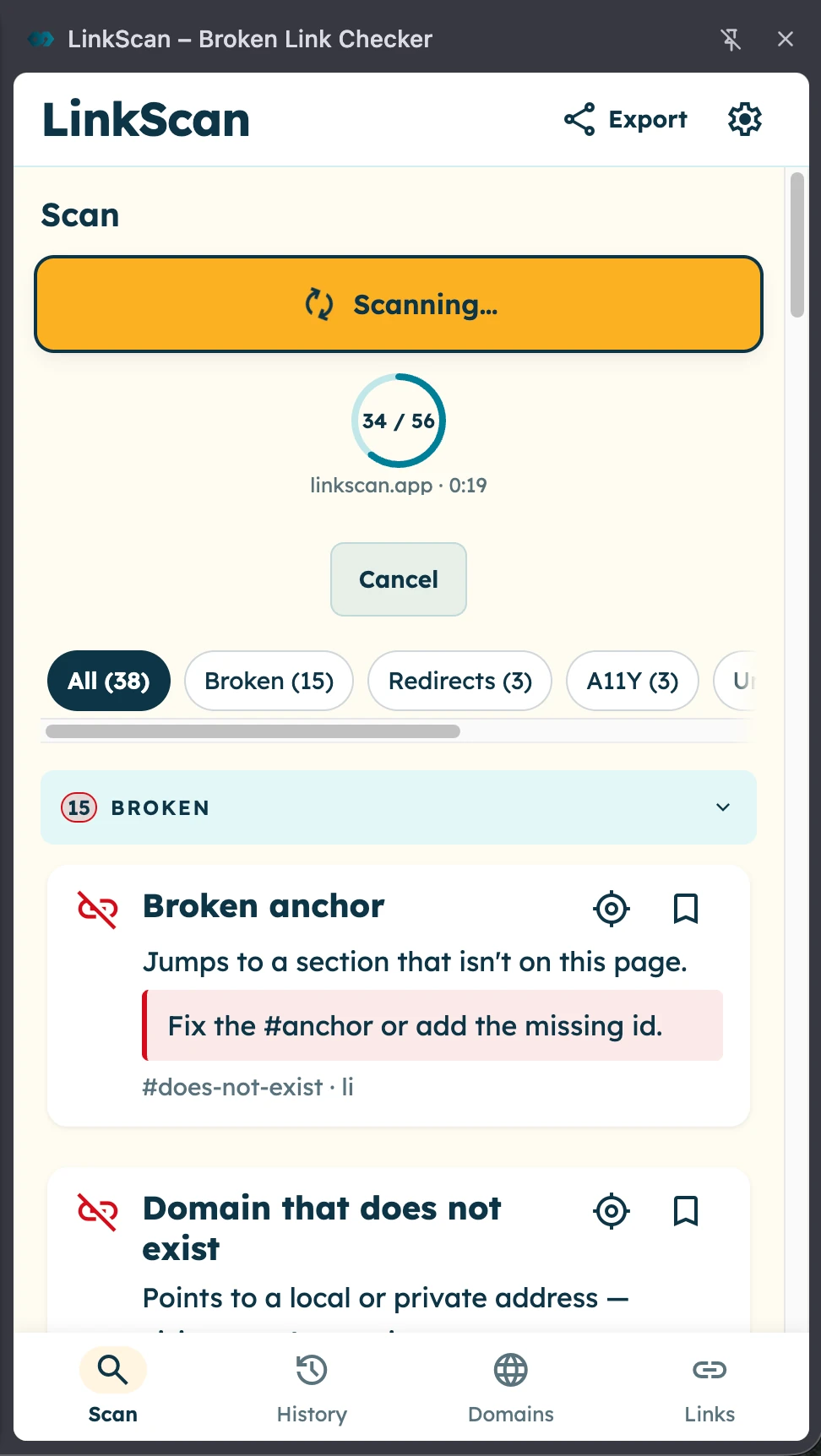
Click Scan and every link on the page is checked: which are broken, which pass through several redirects, which couldn't be checked, and which have empty or vague text.
- Less checking
- Check every link without opening each one.
- Faster fixes
- Jump to problem links and copy the fix list.
- Free & private
- No account. Scan results stay in your browser.
Check the links on a page — or only the part you select
Whole page
Open the page you want to check, open LinkScan from the toolbar and click Scan All Links. It collects every link on the page, internal and external links alike, and checks each address. When the same URL appears several times, it is checked once, and the result shows how many times it appears on the page. mailto:, tel: and javascript: links are skipped.
Selected text
Often only one part of the page is yours to fix: the article body, not the menu and footer. Select that text first. The button changes to Check Selected Links, and only the links inside your selection are checked.
LinkScan works in Chrome's side panel, which stays open while you browse, so the results sit beside the page you are fixing.
What it checks for: broken links, redirect chains, unclear link text
From a dead end to a vague “click here”, see what needs fixing — and what needs another look.
Broken links
Find links that send readers to an error or nowhere at all.
6 checked
We check for
- Page errors
Errors such as 404 Not Found.
- Unreachable sites
The connection fails.
- Redirect loops
The link keeps going in circles.
- Redirects to missing pages
A redirect ends at a recognised not-found URL with status 200.
- Local or private addresses
The address isn’t public.
- Missing jump target
A same-page jump has nowhere to land.
Links to review
Spot extra redirects, slow destinations and links that may not belong on a published page.
5 checked
We check for
- Redirect chains
Two or more hops to the destination.
- Homepage redirects
A deep link leads back home.
- Staging or preview links
A draft address needs review.
- Links using HTTP
The link uses HTTP, even if it switches to HTTPS.
- Slow responses
A successful check takes 3 seconds or more to receive headers.
Unclear or empty links
Help readers understand where a link goes, and catch links without an address.
4 checked
We check for
- Link with no address
No address has been added to the link.
- Link with a blank address
The address field is present but left blank.
- Link with no name
No text, screen-reader label or image description names the link.
- Unclear link text
Text such as “click here”, “read more” or “here”.
Links we couldn’t check
See which links need another try or a manual check before deciding they’re broken.
5 checked
We check for
- Timeouts
The site doesn’t answer within 10 seconds.
- Too many requests
429: the site stops the check for now.
- Site unavailable for now
503: temporarily unavailable.
- Login required
Open the link signed in to check.
- Automated checks blocked
A recognised bot challenge blocks the check.
In the panel, results are sorted into Broken, Redirect & Accessibility, Unknown and OK, each with a text label as well as a colour. Redirect and link-text findings share the amber group. Links you marked as known sit in a fifth group, Known issues.
In the app, filter labels are All, Broken, Redirects, A11Y, Unknown and OK. A11Y means link accessibility issues, including unclear or empty links. The number beside each filter counts links in your scan; the category numbers above show how many checks LinkScan covers.
Unknown results are never counted as broken. A plain 403 without login or bot-challenge signals stays Broken. Not-found detection uses recognised redirect destination paths, not page text: a direct 200 error page can be missed. Cross-page anchor targets are not checked.
Local-address and preview rules are page-relative. They exempt same-site links when the scanned page is itself local, private, staging or preview; this is not a blanket exemption for every link on those pages. Preview checks use specific URL patterns and same-site staging host labels, not every draft site. From a public page, recognised local addresses are flagged without a request.
Slow means the selected HEAD or fallback GET request took at least 3 seconds to receive headers—not total page-load time or the sum of retries. Timeouts remain Unknown; chains and stronger findings take precedence over slow advice.
What each result shows
Each result shows the link text, the URL, the status code, a plain description of the problem and how to fix it.
After you scan the whole page, the LinkScan icon shows the page’s issue count, Unknown included: red if any link is broken, amber if not, no badge on a clean page. It clears when you reload or leave the page.
How the check works
LinkScan asks each server for the headers first (a HEAD request). If the answer is 403, 404, 405 or 501, or the request fails, it tries once more with a full GET request, because some servers answer the short request differently.
What you can do with the results
Locate each problem link
Click Locate on page to scroll to a link and flash it. When the same URL appears more than once, each click moves to the next location, so you can find every occurrence.
Copy findings
Copy issues as text for a ticket or chat, or as a table that pastes into Google Sheets or Excel as columns. Both use the current filter and leave out OK rows and links marked as known issues.
If a flagged link works, mark it as a known issue to stop it counting in the results and on the badge.
Revisit saved results
Open History to revisit a page's latest results and earlier scans. Domains groups checked pages by host; Links lets you browse checked URLs across pages.
Recent checks can reuse a saved result. Use Re-check on a row when you need a fresh check.
Keep results locally
Your scan results stay in local browser storage on your device, not on our servers. Checking links still sends network requests to the linked sites, without your cookies.
You can remove saved results with Clear all data in Settings. Copy anything you want to keep first.
Questions
How do I install LinkScan?
Open LinkScan in the Chrome Web Store on your computer, click Add to Chrome, and review the permissions before confirming Add extension. It's free, with no account to create. Follow the installation and first-scan guide for the next steps.
Can LinkScan check my whole website?
No. It checks one page per scan, or only the links in text you select. For a whole site, use a site crawler (see how to check a whole website) .
Why is a link “Unknown” and not broken?
The site didn't answer within 10 seconds, or it answered “too many requests” (429) or “temporarily unavailable” (503). None of these means the page is gone, so LinkScan doesn't call the link broken. Check it again later. The Testing Lab has a test link for each case.
Why does a link that opens in my browser show as broken?
Some sites block automated checks, or show the page only to visitors who are signed in. LinkScan sends no cookies, so it sees what a signed-out visitor sees. Open the link to confirm. If it's fine, mark it as a known issue and it stops counting. The Testing Lab lists cases like these.
Does LinkScan send my pages or results anywhere?
No. Results stay in your browser. The only requests go to the links being checked.
Is it free? Do I need an account?
It's free, and there's no account to create. Install it from the Chrome Web Store.
Guides
Set up your first check, choose the right tool and learn what to do when a link needs attention.
- Get started
How to install LinkScan in Chrome
Install the extension, pin its icon and run your first link check.
- Read guide
Check a WordPress page before publishing
Scan the preview tab, not the editor, and fix links before readers see them.
- Read guide
Find and fix redirect chains
Count the hops and link straight to the final address.
- Read guide
How to find broken links on a website
Find dead links on a website: which broken link scanner fits the job, whole site or one page, free or paid, and how to fix what it finds.
- Read guide
How to check for 404 errors
Check 404 errors two ways: the links on your pages that point to missing pages, and your own URLs that return 404. Which tool finds which, and how to fix.
- Try the test page
Try the link testing playground
Compare working links, broken links and redirects on a page built for testing.