Install in desktop Chrome
-
Open the Chrome Web Store listing
Use the button below to open LinkScan's listing in a new tab.
-
Add LinkScan to Chrome
Click Add to Chrome. Read Chrome's permissions and data-access notice. If you're comfortable with the access requested, click Add extension to confirm.

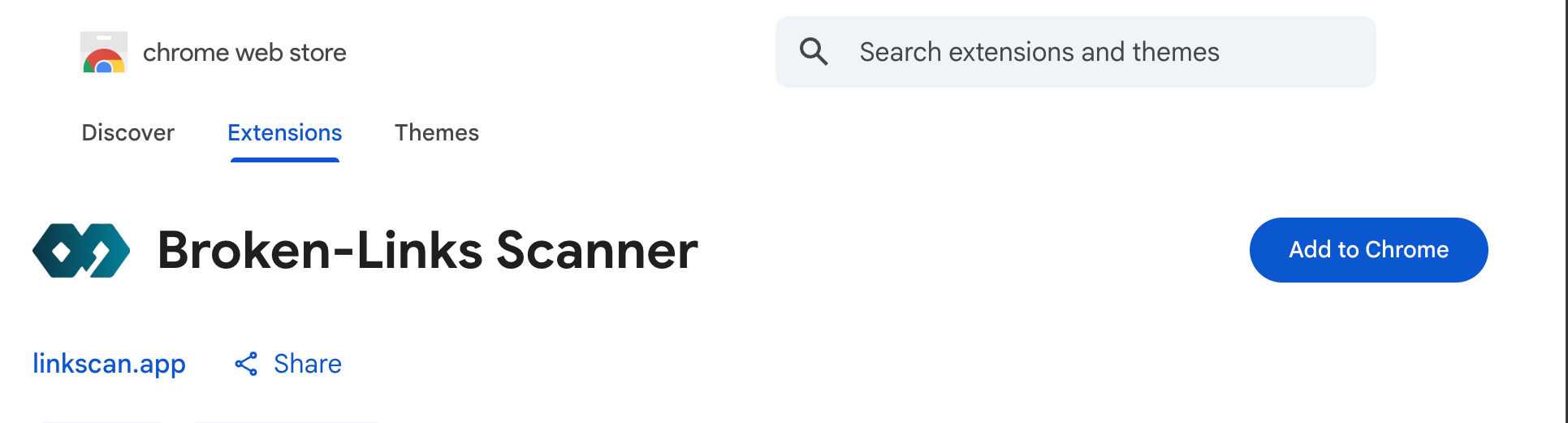
Choose Add to Chrome on the store listing. This capture shows the older name, Broken-Links Scanner; Chrome's permission confirmation appears next. View full-size store screenshot -
Pin the icon (optional)
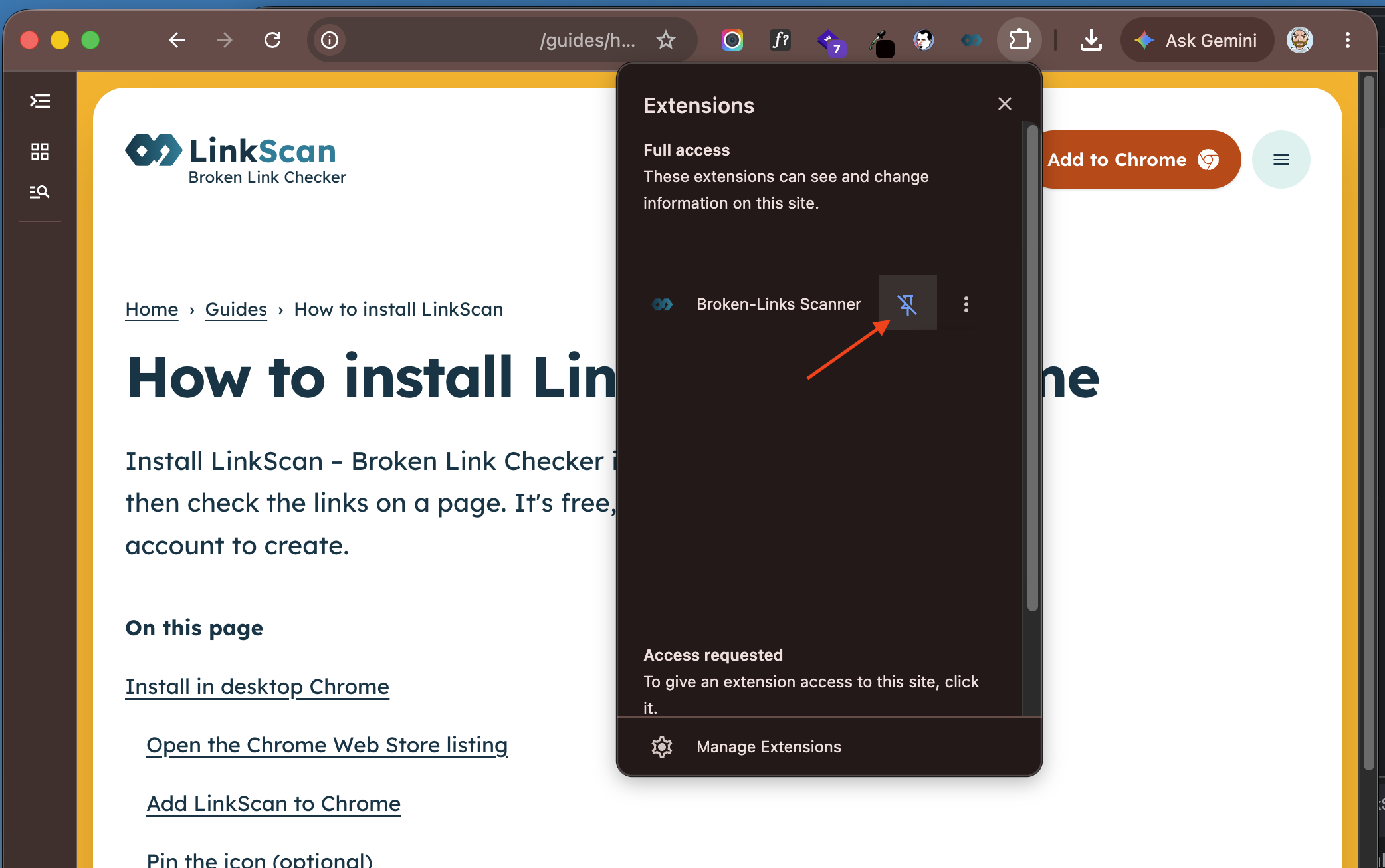
Open Chrome's Extensions menu in the toolbar. Find LinkScan and use Pin to keep its icon within reach. You can also open LinkScan from that menu without pinning it.

Use the pin beside LinkScan (shown under its older name, Broken-Links Scanner). Pinning makes the icon visible; it isn't another installation step. View full-size pin screenshot
For Chrome's installation and permission controls, see Google's extension help.
Run your first scan
-
Open a page and click the LinkScan icon
Go to the webpage you want to check. Click LinkScan in the toolbar or Extensions menu to open Chrome's side panel beside the page.
Use an ordinary website, not the Chrome Web Store or a
chrome://page: Chrome restricts extensions on those pages. You can practise on our Testing Lab. -
Select text (optional)
To check only part of the page, highlight that text. On an unscanned page with website access already granted, the button shows Check Selected Links. Before the first access approval, it still says Scan All Links; use that button to open the access prompt in the next step. Leave text unselected to check the whole page.
-
Start the check and review site access
Click Scan All Links or Check Selected Links.
On the first scan, LinkScan asks for access to check website links. This is separate from installing the extension. Read the explanation; choose Grant access if you want to continue, then review Chrome's permission prompt. You can choose Not now instead; scanning needs that access.
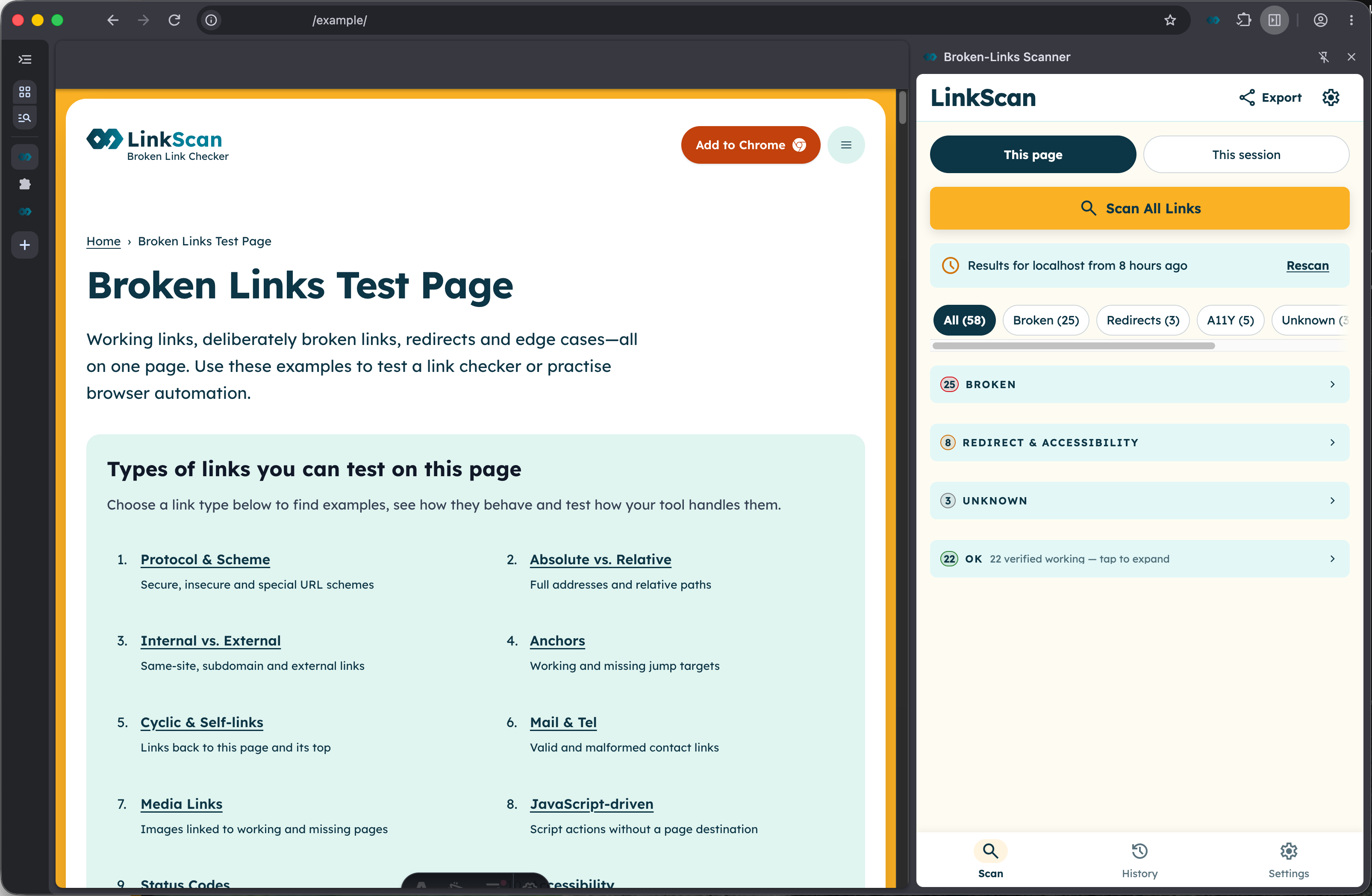
Once access is granted, LinkScan checks the links and groups the results in the panel.

A local preview of LinkScan beside the Testing Lab, with saved scan results. This is not the first-access prompt; the interface may differ from your installed version. View full-size scan screenshot -
Read the results and find the link
Read each finding. Use Locate on page to find the link on the webpage you're checking.
-
Fix in your editor, or copy the findings
Update the link in your website editor. LinkScan doesn't change your page for you. Copy the list when you need to share the findings with someone who can make the fixes.
Setup and results questions
Where is the LinkScan icon?
Open Chrome's Extensions menu and look for LinkScan. Pin it if you want the icon on the toolbar. If it's missing or turned off, open Extensions → Manage extensions and check that LinkScan is installed and enabled. A hidden icon doesn't mean it isn't installed.
Why is Add to Chrome unavailable?
Use Chrome on your computer in a normal window, not Guest or Incognito. If LinkScan is already installed, check Manage extensions instead. On a work or school computer, your organization may block installation; ask your administrator whether LinkScan is allowed. Don't bypass those restrictions or install an unofficial package. Google explains Chrome's installation restrictions.
Can I use LinkScan in Chrome on my phone?
Use desktop Chrome. Chrome's Add to Desktop option on a phone adds an extension for your computer, not the phone. See Google's phone-to-desktop instructions.
Do I need an account or a payment?
No. LinkScan is free to install, and there's no LinkScan account to create.
Why does LinkScan ask for access before the first scan?
Installing and scanning are separate. LinkScan needs website access to check links. Read its explanation and Chrome's prompt before granting access; don't approve a permission you aren't comfortable with. You can review extension permissions in Chrome's Manage extensions controls. Available site-access options depend on the extension's permissions. See our privacy explanation and Google's permission guidance.
If you chose Not now or declined Chrome's prompt, use Grant access in LinkScan's access message to try again. If your organization blocks access, ask your administrator rather than bypassing the restriction.
If you revoked website access in Chrome, open LinkScan's Settings and choose Grant access to request it again.
How do I remove LinkScan?
In Chrome, open Extensions → Manage extensions, find LinkScan, click Remove, then confirm Remove. Google also explains removal from the toolbar.
What can I copy from the results?
Copy findings as text for a ticket or chat, or as a table that pastes into Google Sheets or Excel as columns. Export copies the issues shown by the current filter; OK rows and links marked as known are left out. It applies to the current page, or the page detail you opened in History.
How do I revisit results or request a fresh check?
History keeps checked pages with their latest results and earlier scans. Domains groups pages by host, while Links lists checked URLs across pages with filters and sorting. Saved results follow the retention rules; they are not a permanent archive.
Links checked within the last 48 hours are normally not requested again. Change this under Staleness threshold in Settings, or use Re-check on a result row when you need a fresh check. Mark an accepted problem as a known issue to stop it counting in the results and toolbar badge.